How to download your bank transactions as a CSV file
Where to find the CSV export at N26, Revolut, Sparkasse, ING and DKB, and how to import the file into Dribs.
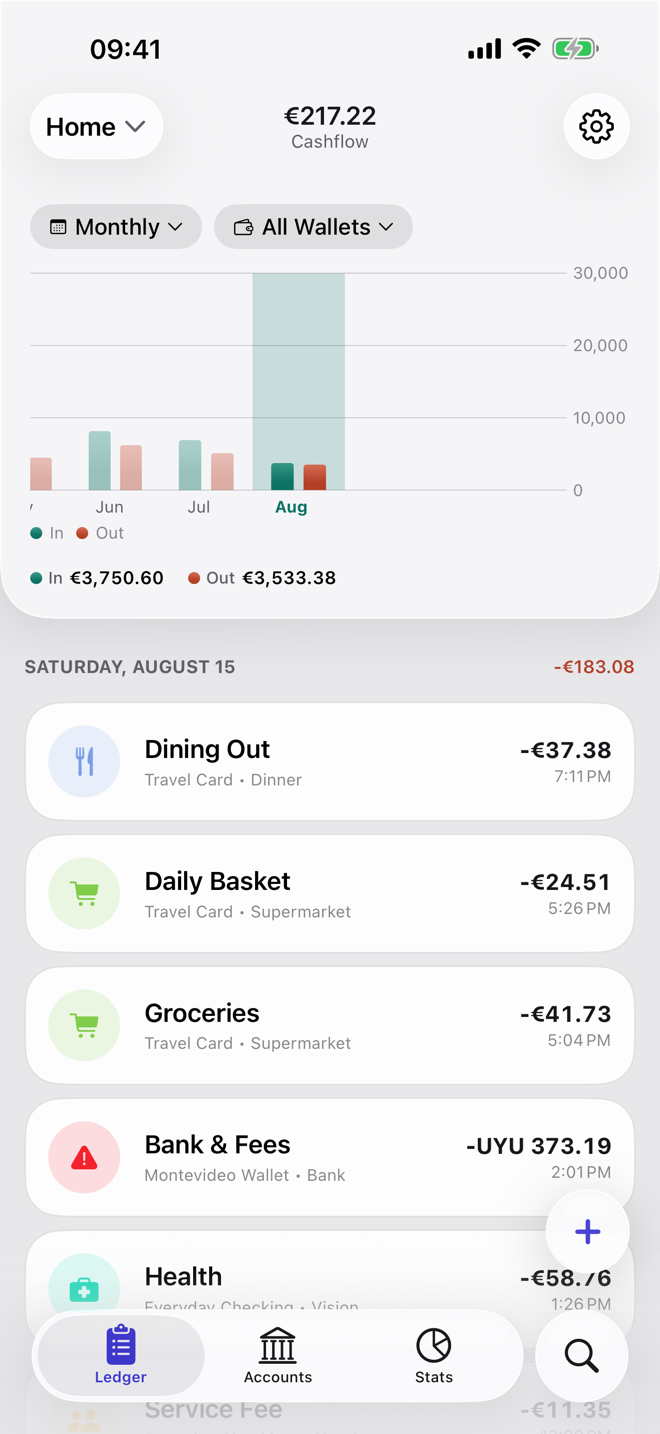
Most banks let you download your transactions as a CSV file, usually in online banking in the browser rather than in the app. You pick a date range, choose CSV and save the file. Dribs then turns it into transactions in one of your accounts, without ever connecting to your bank.
Below are the steps for N26, Revolut, Sparkasse, ING and DKB, what to look for at any other bank, and how the import works in Dribs.
Before you start
- Use a computer if you can. Many banks only offer CSV in the browser, and their app gives you a PDF statement instead.
- Choose CSV, not PDF. A PDF statement is made for reading, not for importing.
- Pick the period you're missing, for example everything since your last import, so nothing comes in twice.
N26
In the N26 web app, select the account or Space on the Home screen and open Downloads. Under Account activity, enter a start and an end date, choose CSV and download the file. Spaces are exported one at a time, so each one can go into its own Dribs account.
Revolut
In Revolut on the web, click Statement above your transactions. Choose the account, select Excel, set the first and the last month, and click Generate. Despite the name, the file you get is a CSV.
Each statement covers one account. If you hold euros and dollars, download both and import each into a Dribs account in the same currency. Tracking multiple currencies explains how those accounts add up.
Sparkasse
Sign in to online banking in the browser, open your account's transactions (Umsätze), set the date range and export them. If you're asked for a format, choose CSV-CAMT. Menus differ a little from one Sparkasse to the next, so look for an export or download option on the transactions page.
The file can include pending transactions (Umsatz vorgemerkt) next to booked ones. Pending amounts can still change, so you may prefer to skip them in the review and pick them up with your next import.
ING
In ING's online banking in the browser, open the account's transactions (Umsätze) and download them as CSV. The file starts with a few lines about your account before the actual columns. Dribs skips those.
DKB
In DKB online banking in the browser, open the account's transactions, set the period and download them as CSV. If you can't find the option in the app, use the browser.
For card payments, DKB's description column (Verwendungszweck) often says little more than the card type, while the shop's name is in the payee column. If you'd rather see shop names, choose that column for the description under Adjust column mapping.
Any other bank
Look for something like export or download on the transactions page of your online banking, and choose CSV. Dribs can read the file if it has:
- a row with column names, such as Date, Description and Amount, or Buchungsdatum, Verwendungszweck and Betrag
- a date in each row, written day-month-year, month-day-year or year-month-day
- either one amount column or separate debit and credit columns
A comma or a point as the decimal separator both work. If a column has a name Dribs doesn't recognise, you can pick it yourself under Adjust column mapping.
Only offered Excel? Open the file in Numbers and choose File → Export To → CSV. A PDF statement can't be imported.
Importing the file into Dribs
-
Get the file onto your device
On a Mac, leave it in Downloads. On an iPhone or iPad, save it to the Files app, or AirDrop it from your computer.
-
Open Settings → Import CSV
Choose the file, then the Dribs account the transactions belong to, for example your checking account or your credit card.
-
Check what Dribs found
Dribs matches the columns and shows every transaction before anything is saved. Rows it can't read are listed with the reason. How CSV import works covers the mapping options in detail.
-
Import
Choose default categories for rows without one, skip anything you don't want, and import.

Import your first file
Free on the App Store for iPhone, iPad and Mac. No bank login, no account.
